windows / containers
Windows containers, Linux containers, and when a small Windows VM wins
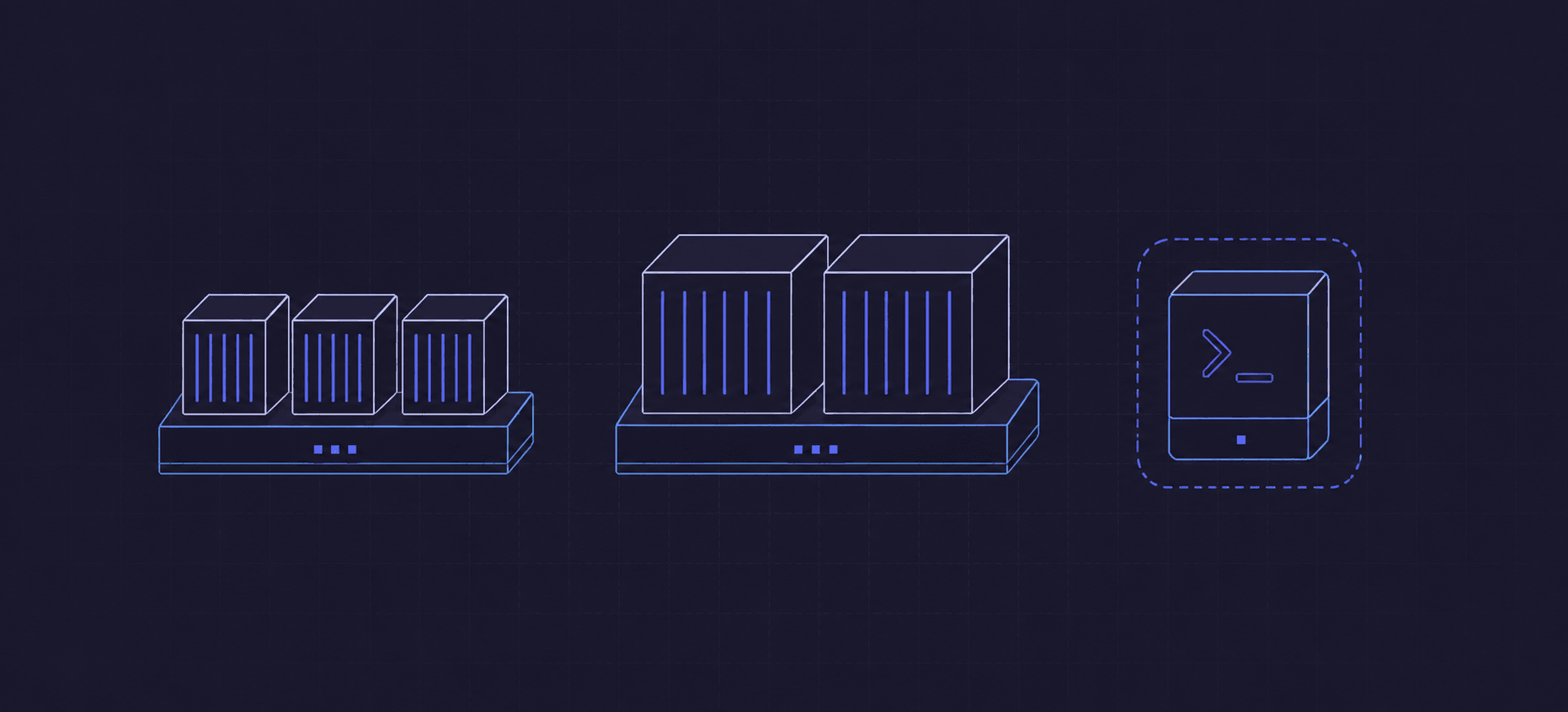

Writing an application in C# does not decide its operating system. A portable
ASP.NET Core service can run in a Linux container. An ASP.NET Framework
application using Web Forms has a different dependency chain, even though
both repositories contain .cs files.
For the first case, I would normally choose Linux. For the second, a Windows container can be a useful step toward repeatable deployment without coupling that work to a full application rewrite. Sometimes neither container is the best answer, and a small Windows Server Core VM is easier to operate.
This is the bonus to the recent .NET articles: how I would make that hosting decision with the Windows Server 2019 and 2022 options available in January 2022. The deciding factor is the dependency and lifecycle of the workload, rather than loyalty to a language or an operating system.
Start with the dependencies, not the Dockerfile
The Linux example uses Kestrel, portable .NET libraries, and configuration supplied at startup. It needs no Windows service manager, registry configuration, or Windows-only native DLL. Putting that application on Windows would add a platform requirement without solving a problem it has.
A dependency inventory should include more than NuGet packages. Check native libraries, filesystem assumptions, authentication, certificates, command-line tools, and anything the application installs or launches. A library can target a compatible .NET API surface and still call a Windows function at runtime. A test on the target OS is part of answering the portability question.
Containers also share a kernel in the ordinary process-isolated model. A Windows image cannot execute directly on a Linux kernel. Linux containers on a Windows development machine use a Linux environment backed by virtualization; changing the Dockerfile does not translate system calls. In a mixed deployment, plan for the appropriate hosts or node pools.
For portable services, the Linux option keeps that inventory shorter. It also avoids introducing Windows base-image compatibility and Windows host servicing into a service that does not benefit from them. That is a useful default, not a claim that every existing Windows application should be ported before its deployment can improve.
The Windows container cases that earn the extra work
The clearest case is an existing ASP.NET application on .NET Framework with IIS dependencies. A container can package its deployed files and configuration so that recreating an instance no longer starts with a series of manual changes to a server.
A second case is a headless application with a Windows-only native component, or a compatible WCF service whose migration is separate work. The component must work inside the selected container API surface; “works on a Windows desktop” is insufficient evidence.
A third case is a repeatable Windows build environment, provided the tools support unattended installation and execution in containers. This can isolate build dependencies, but it is not a replacement for tests that need a desktop, a driver, or the behavior of a complete installed Windows system.
These are narrower use cases than “our developers use Visual Studio.” Microsoft's period migration guidance lists suitable application categories and important unsupported workloads. Read it before trying to move an entire machine into an image.
I would still ask what improves operationally. If the application writes important state into its installation folder and nobody can explain how to restore it, wrapping that folder in a container has not settled deployment. Externalize the state, define startup and shutdown, and prove that an instance can be replaced.
Server Core and Nano Server are different bases
For .NET Framework, Server Core is the usual starting point. It provides a broader Windows API surface and supports the framework and IIS scenario. Nano Server is smaller and deliberately omits more of Windows; it is useful for compatible modern .NET applications, not as a drop-in base for a Web Forms application.
The historical base-image documentation spells out those differences. A smaller API surface can be an advantage when the application fits it. Otherwise it simply produces missing dependencies.
There are broader Windows/Windows Server base images for workloads needing additional APIs. Microsoft's October 2021 comparison explains that the Server image belongs to the Windows Server 2022 generation. These choices do not provide an interactive desktop inside a container. Additional APIs and a supported GUI session are different capabilities.
A tiny example of the Framework case
On a patched Windows Server 2019 host configured for Windows containers,
create Default.aspx in an empty build directory:
<%@ Page Language="C#" %>
<!doctype html>
<html lang="en">
  <head>
    <title>Framework container</title>
  </head>
  <body>
    <h1>ASP.NET Framework on Windows</h1>
    <p>The server calculated: <%= 6 * 7 %></p>
  </body>
</html>
Use this Dockerfile:
FROM mcr.microsoft.com/dotnet/framework/aspnet:4.8-windowsservercore-ltsc2019
COPY Default.aspx C:/inetpub/wwwroot/Default.aspx
The .NET Framework image manifest includes that tag. The base already supplies IIS, ASP.NET Framework 4.8, and the service-monitor entry point. We keep that entry point rather than replacing it with a shell that exits immediately.
From PowerShell on that host:
docker build -t framework-demo:local .
docker run -d --name framework-demo --isolation=process -p 8082:80 framework-demo:local
Invoke-WebRequest http://localhost:8082/Default.aspx -UseBasicParsing
docker inspect framework-demo --format '{{.State.Status}}'
The HTML response should contain the calculated value 42. ASP.NET compiles this small page on demand; there is no missing application project or publish folder to create. A real application would usually copy its published output and test its configuration and dependencies as well.
This demonstrates .NET Framework, not ASP.NET Core. Replacing the base with
the Linux ASP.NET Core image will not make the .aspx page portable. It
requires an application migration. Remove the example container after the
test with docker rm -f framework-demo.
Choose the isolation mode with the host
Process isolation shares the host's Windows kernel. Hyper-V isolation gives the container its own kernel in a lightweight utility VM. Both use container images and container management commands, but they have different isolation and resource characteristics. Microsoft's isolation explanation describes that boundary.
Version compatibility is especially important for process isolation. For the
2019 example, keep a 2019 host with the ltsc2019 base and service both.
According to the compatibility matrix available now,
a Server 2022 host can run a Server 2019 container with Hyper-V isolation,
but not process isolation. A Server 2019 host does not gain support for a
Server 2022 image by selecting Hyper-V isolation.
That makes the OS tag a deployment decision. Test the host, image, and isolation combination that production will use. If the Windows host itself is a VM, Hyper-V isolation also requires a supported nested-virtualization setup. It is not a universally available switch in every hosting environment.
Hyper-V isolation has additional overhead, but a container's isolated utility VM is not a general-purpose Windows guest to administer like a conventional server. The application is still expected to behave as a container workload.
Minimal Windows VMs: use Server Core deliberately
There is a sensible middle ground between a Linux container and a Windows VM filled with desktop components. Windows Server Core is a headless installation option for a full Windows Server guest. It retains its own kernel, boot lifecycle, service manager, and supported server roles.
That is different from a Server Core container image, which supplies container userspace. It is also different from a Nano Server container image. Downloading either image does not give you an installation ISO for a minimal general-purpose VM.
The Server Core documentation explains the reduced installation and remote-management model. Choose the non-Desktop Experience option during Windows Server installation. Then use PowerShell, remote administration tools, and an image-building process rather than relying on a person navigating a desktop to reconstruct the server.
For an evaluation of a small headless service, I might begin with two vCPUs, 4 GiB RAM, and a 60 GiB virtual disk. Those are starting allocations to test, not Microsoft's minimum requirements or a claim about what every service needs. Leave space for servicing, logs, agents, and recovery operations, not just the installed application folder.
On the VM, these PowerShell commands help establish what is installed and what the operating system reports:
Get-WindowsFeature | Where-Object Installed
Get-CimInstance Win32_OperatingSystem |
    Select-Object Caption, Version, TotalVisibleMemorySize, FreePhysicalMemory
Get-Process |
    Sort-Object WorkingSet64 -Descending |
    Select-Object -First 10 Name, Id, WorkingSet64
The operating-system memory properties shown here are in kilobytes; process working sets are in bytes. Record the guest measurements together with the hypervisor's memory view under normal load and during servicing. Removing the desktop can reduce the installation footprint, but it does not remove the cost of a running guest OS.
I would build the VM from a repeatable template, install only needed roles, run the application with an appropriate service identity, and collect its logs remotely. A recoverable template and a tested restore process matter more than proving that Windows can boot with an aggressively small RAM value.
When the VM is the more honest choice
Some workloads need machine-level installation, a supported driver, reboots as part of validation, or a server role that is unsuitable for a container. A Server Core VM can provide those machine semantics if the software supports Core. If the application truly needs an interactive desktop, even Core is the wrong fit: evaluate a Desktop Experience VM and the vendor's requirements.
The same distinction matters for build agents. A headless compiler is one thing; testing a signed installer and the resulting machine configuration is another. The Windows Jenkins agent is an example of a workload where the machine itself is part of the setup. Trying to emulate every machine operation inside a container can cost more than maintaining a focused VM template.
Windows-only does not automatically mean container-compatible, and a VM does not automatically make every automation scenario vendor-supported. The deployment choice should match the actual support and lifecycle needs.
Compare the whole deployment cost
Image download size, resident application memory, host overhead, and update effort belong in separate columns of the decision. Shared image layers help disk usage; they do not mean each replica needs no additional RAM. Likewise, a quiet VM's free-memory figure is not comparable to a container's managed heap counter.
Run equivalent work, count successful requests or jobs, record latency and peaks, and include the host capacity reserved for each option. Include the Windows hosting and licensing arrangement in the cost model rather than assuming a container makes that requirement disappear.
My default remains Linux for portable .NET. I would choose Windows containers when a specific Windows dependency and repeatable replacement make them useful. When the workload needs a machine, a deliberately configured Server Core VM is a valid design—not an unfinished container migration.

Written by
Deyan Peev
Founding Engineer · Sofia, Bulgaria